If you use FrameRipper on an iPhone, you will see a note above the Extract button: press play on the video once before extracting. It is the only device-specific instruction in the whole tool, and it is there because of how Safari on iOS handles video.
This post explains what goes wrong without that tap, why it happens, and why the tool asks you to do it instead of doing it automatically.
The short version
- 1Pick your video. The preview player appears.
- 2Tap play on the preview and let it run for a moment. You can pause it again or leave it playing; extraction pauses it anyway.
- 3Set the number of frames and the format.
- 4Tap Extract Frames.
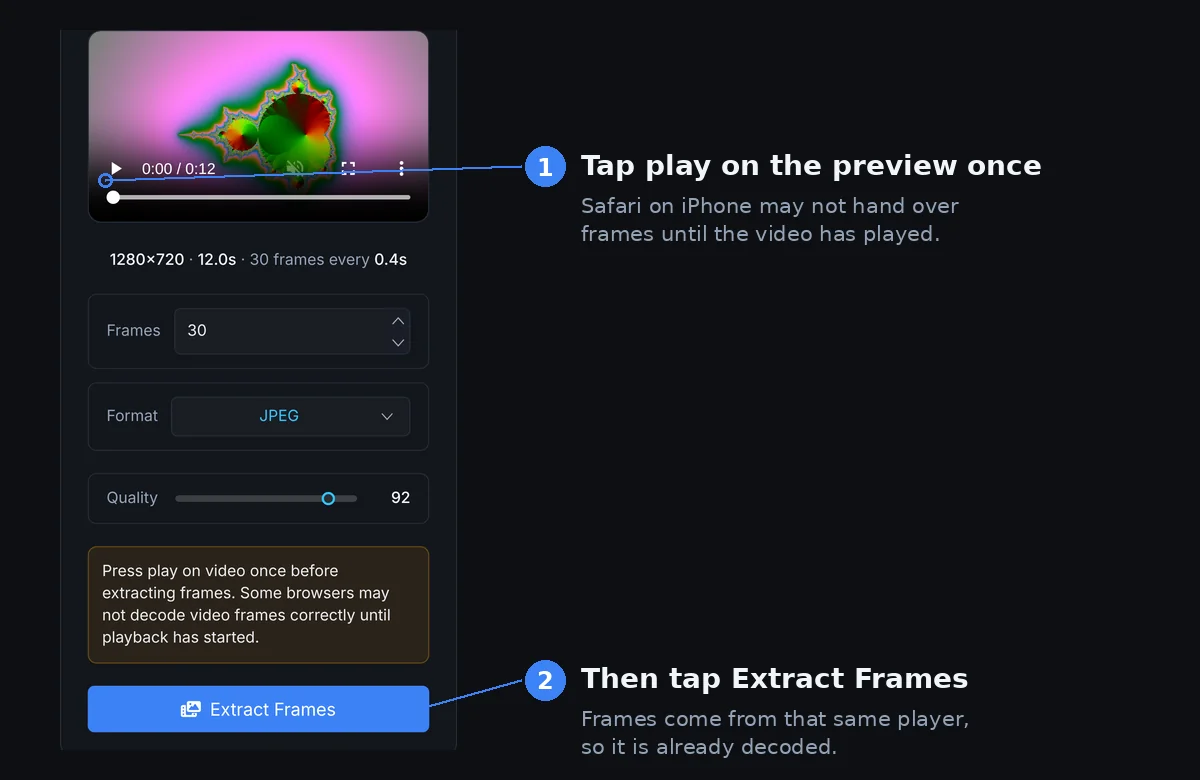
Other browsers on iPhone generally run on the same engine as Safari underneath, so they need the same tap.
What happens if you skip it
Extraction works by jumping the video to a series of timestamps and copying the picture at each one. That only works if the browser has actually decoded the video and has a picture to give.
On a desktop browser that happens as soon as the file is selected. Safari on iPhone is more conservative. Until you start playback, it may not load and decode the video data at all, and copying a frame from a video in that state gives you nothing useful: extraction can sit waiting for the video to load, or frames can come out wrong, often plain black.
Since October 2026 the tool spots the first case. If it is still waiting after eight seconds, it says so and tells you to press Abort, play the video once, and extract again.
Why Safari behaves like this
Phones are short on battery, memory and sometimes mobile data, and video is expensive on all three. Safari on iOS has long been careful about doing video work the user has not asked for. A web page can ask for a video to be preloaded, but that is a hint the browser is free to ignore, and on iPhone it often does.
Pressing play is an unambiguous signal that you want the video. After that, the decoder is running and every seek produces a real frame.
Why the tool does not just press play for you
The obvious fix is for the page to start playback itself. Safari does let muted videos play without a tap in many situations, so this sounds easy. In practice it is not dependable enough to build on.
Low Power Mode is the clearest example: with it on, Safari stops videos from starting on their own, muted or not. Beyond that, whether an automatic play is allowed depends on the iOS version and on what the page did just before, and when it is refused, nothing visible happens. A tool that works on your phone and quietly fails on your friend’s is worse than one that asks for a single tap.
A tap on the real play button counts as a user action on every version, in every power mode. So the tool asks for it, plainly, once.
Why it uses the video you can see
FrameRipper extracts from the same preview player you see on the page, not from a hidden copy. Partly that saves memory: one decoder instead of two. On iPhone it is also what makes the tap work. The video you pressed play on is the one that is ready, and a hidden second player would be back at square one, never played and possibly never decoded.
The rest of the pipeline is described in how FrameRipper extracts frames.
Other tips for iPhone
- Keep frame counts sensible for 4K footage. Phones have far less memory than laptops, and a few hundred 4K frames per run is a comfortable limit. Split bigger jobs.
- HEVC is fine. iPhones record it by default and Safari decodes it natively, which is one thing iPhone does better than most Windows PCs.
- If HDR video is on (the default on recent iPhones), frames can look a little flatter than the preview. That is a colour conversion issue, not a decoding one, and the play step does not affect it.
- Low Power Mode also slows extraction down, because it limits how hard the phone works. Turn it off for big jobs if you can.
- The ZIP lands in the Files app, in Downloads. Tap it there to unpack it, then select the images and use Share, Save Images to put them in Photos.
Try FrameRipper - free, no upload
Extract frames from any video directly in your browser. No sign-up, no file size limits.
Open FrameRipperIf it still will not work
If the preview itself will not play, the play step is not the problem: the browser cannot decode the file. That is rare on iPhone, since Safari handles the formats iPhones record, but it can happen with files from other cameras.
For format problems, start with the iPhone video guide. For anything else, send a bug report with your phone model and iOS version, and I will look into it.