Three formats, and for most people the right answer is "use JPEG and stop thinking about it". But there are specific situations where that answer is wrong, sometimes expensively so, and knowing which is which takes about five minutes.
This covers how each format actually compresses, what that means for video frames specifically, and a decision rule you can apply without thinking next time.
The one-line version
| Format | Compression | Relative size | Use when |
|---|---|---|---|
| JPEG | Lossy | 1x | Sharing, documents, general use |
| PNG | Lossless | 3-5x on photos, 0.6x on slides | Editing, datasets, screen content |
| WebP | Lossy or lossless | 0.6-0.8x | Images going onto a website |
How each one compresses
JPEG discards what your eye ignores
JPEG divides the image into 8x8 pixel blocks and, within each block, throws away the detail human vision is least sensitive to - mostly fine colour variation and high-frequency texture. It was designed in 1992 for photographs and it is extremely good at them.
The cost is that the discarded information is gone permanently, and the artifacts it introduces follow that 8x8 grid. At high quality you will never see them. At low quality you see blocking in smooth gradients and ringing around sharp edges.
PNG finds repetition
PNG uses lossless compression, which means it reconstructs the exact original pixels. It achieves size reduction by spotting patterns and repeated values rather than by discarding anything.
This makes its efficiency entirely dependent on content. A photograph has few exactly-repeated pixels, so PNG compresses it poorly. A slide with a white background has enormous runs of identical pixels, so PNG compresses it extremely well.
WebP does both
WebP is Google’s format and supports both lossy and lossless modes, plus transparency. Its lossy mode typically produces files 25 to 35 percent smaller than JPEG at comparable visual quality.
Browser support is now universal, but support outside browsers is patchier. Some older desktop software, some print workflows and some document systems still do not accept it.
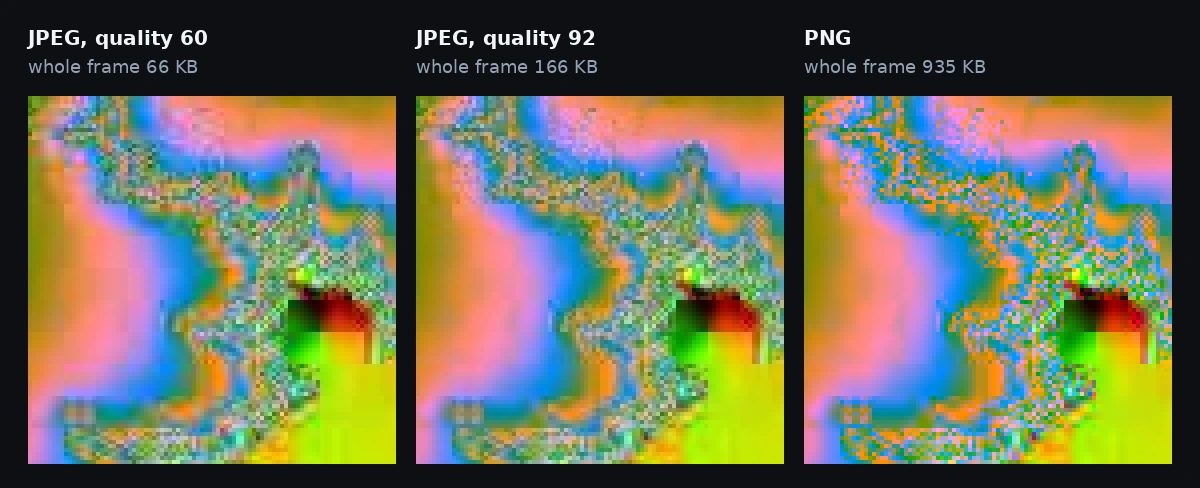
Real numbers
The critical thing this table shows is that the ranking flips depending on content. For live action, PNG is roughly eight times the size of JPEG. For a slide, PNG is smaller than JPEG - and sharper.
| Content | Resolution | JPEG q92 | PNG | WebP |
|---|---|---|---|---|
| Live-action video | 1920x1080 | 320 KB | 2.5 MB | 240 KB |
| Live-action video | 3840x2160 | 1.1 MB | 8 MB | 820 KB |
| Screen recording | 1920x1080 | 180 KB | 250 KB | 140 KB |
| Slide with white background | 1920x1080 | 140 KB | 90 KB | 95 KB |
| Animation / motion graphics | 1920x1080 | 210 KB | 400 KB | 160 KB |
Figures are typical rather than guaranteed. Actual sizes vary considerably with how much fine detail a particular frame contains.
When JPEG is wrong
Three situations where reaching for JPEG out of habit costs you something real.
You will edit and re-save repeatedly
Every time a JPEG is saved, it is compressed again. Open, adjust, save, open, adjust, save - each cycle discards a little more. After several rounds the degradation becomes visible, and it is not recoverable.
PNG has no such problem. Save it a hundred times and it is byte-identical. If frames are going into a design process rather than straight to a viewer, start with PNG and export JPEG only at the very end.
The frames are training data
JPEG artifacts are structured, not random - they align to that 8x8 grid, and models are very good at learning structure, including structure that has nothing to do with your task. Use PNG, or if storage forces JPEG, one identical quality setting everywhere.
Why this matters, and how to split a dataset built from video, is in the dataset guide.
The content is screen capture
Slides, screen recordings, UI captures, animation, anything with flat colour and sharp text. JPEG produces ringing around every hard edge, and PNG is frequently smaller anyway. There is no tradeoff to weigh here - PNG simply wins.
Try FrameRipper - free, no upload
Extract frames from any video directly in your browser. No sign-up, no file size limits.
Open FrameRipperThe transparency question
PNG and WebP both support an alpha channel, and JPEG does not. This sounds like it matters for extracted frames, and usually it does not.
H.264 and H.265 - which is to say almost all MP4 and MOV footage - have no mechanism for storing transparency. Every frame is fully opaque, so a PNG extracted from one has a solid alpha channel and gains nothing from supporting alpha.
The exception is WebM. VP8 and VP9 can carry genuine per-pixel transparency, which is why transparent web video - animated logos, stream overlays, alert graphics - is almost always WebM. If you are extracting from one of those, format choice suddenly matters a great deal: PNG or WebP preserves the transparency, and JPEG flattens it to solid black.
A decision rule
Run through these in order and stop at the first match.
- Source is WebM with transparency you want to keep → PNG
- Content is slides, screen recording or animation → PNG
- Frames are training data → PNG
- You will edit and re-save the frames → PNG
- Images are going directly onto a web page → WebP
- Anything else → JPEG at quality 92
A note on quality settings
For JPEG and WebP, quality 92 is a well-chosen default and there is rarely a reason to move it.
Going higher yields diminishing returns fast: 100 can nearly double file size for a difference you cannot see without pixel-peeping two versions side by side. Going lower saves real space but starts showing blocking in gradients below about 75, and skies and out-of-focus backgrounds are where it appears first.
If you are extracting hundreds of frames and storage is tight, 80 to 85 is a defensible compromise. Below that you are trading away image quality for space that is probably cheaper than the quality.
Try FrameRipper - free, no upload
Extract frames from any video directly in your browser. No sign-up, no file size limits.
Open FrameRipper